How to add games to the R36S, step by step
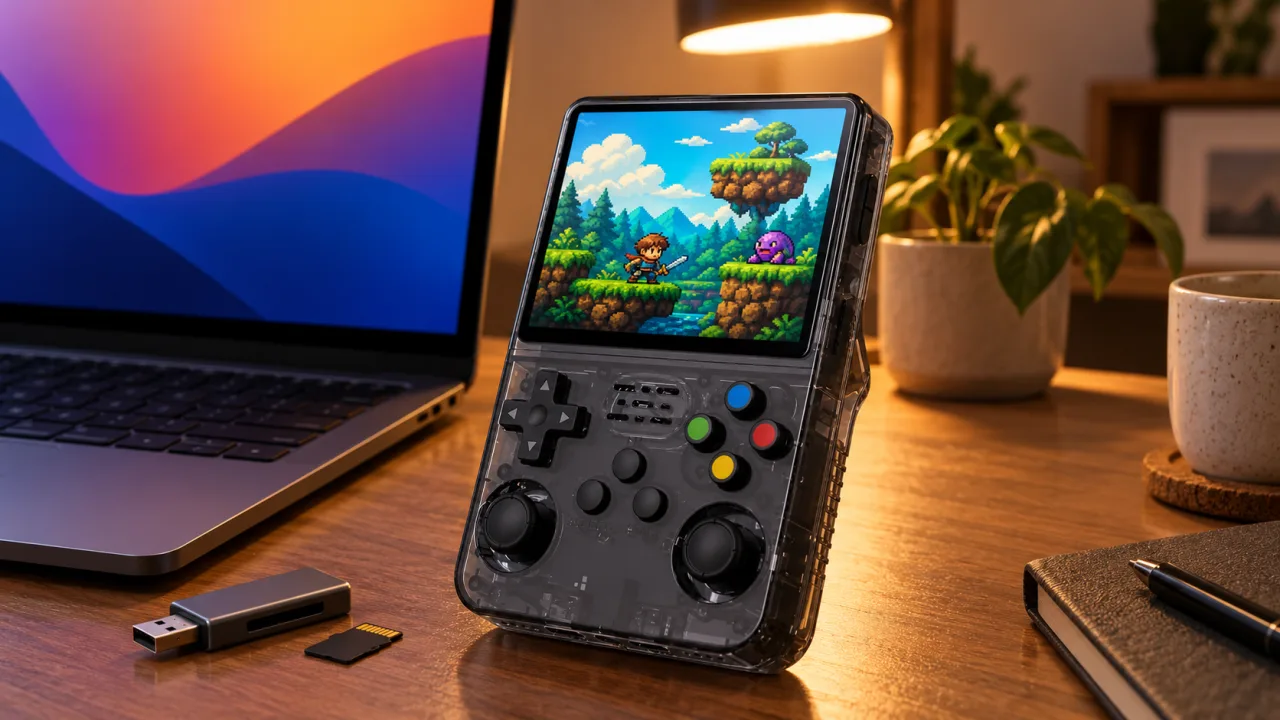
If you have picked up an R36S and want to build out your collection, adding games is a straightforward job once you know where everything lives. The console already comes with 15,000+ games pre-installed, but plenty of people like to add their own ROMs, homebrew titles or favourites that are not on the card by default.
This guide walks you through the whole process, from safely removing the microSD card to copying files across and refreshing the library so your new games appear. We will also cover backups, since a little preparation now can save you a lot of frustration later.
What you will need before you start
Adding games to the R36S is a simple file transfer job, but a few bits of kit make it much easier. Gather these before you begin so you are not stopping halfway through.
- A computer running Windows, macOS or Linux.
- A microSD card reader, either built into your laptop or a cheap USB adapter.
- Your legally owned ROM files, ready to copy (check the R36S games list first, your favourite may already be there).
- A spare folder on your PC to hold a backup.
The R36S runs ArkOS, which is a well supported custom firmware based on Linux. That is good news, because it uses a clear and predictable folder structure that is easy to work with on any computer (our ArkOS guide explains the menus).
Step 1: Safely remove the microSD card
Power the console down fully before removing anything. Do not eject the card while the R36S is switched on, as this risks corrupting the files. If your console has more than one card slot, take note of which card holds the games before you remove anything.
Remove the card gently, handle it by the edges and set it into your card reader. If your R36S came with a single bundled card, it is worth cloning it before you make any changes, which we cover further down.
Step 2: Open the card and find the ROM folders
Once the card is in your reader, your computer should show one or more drives. On ArkOS you are looking for the storage partition that holds the game folders, often labelled with the games directory. Inside you will find folders named by system, such as nes, snes, gba, psx and megadrive.
Each folder holds the games for that particular console. The naming is based on the emulator system rather than the marketing name, so Game Boy Advance games go in gba, PlayStation games go in psx, and so on. If you are unsure which folder matches a system, open one that already contains games and use it as a reference.
Step 3: Copy your games across
Now drag and drop your ROM files into the correct system folder. Keep files in the format the emulator expects. Most cartridge based systems use simple single files, while disc based systems like PlayStation may use .cue and .bin pairs or a single .chd file. Always copy every part of a multi file game together.
A few tips to keep things tidy:
- Keep filenames clear and avoid unusual symbols.
- Do not nest games inside extra subfolders, as the console may not find them.
- Let large transfers finish completely before ejecting.
- Zip archives are fine for some systems but not all, so extract if in doubt.
When the transfer is done, eject the card properly from your computer rather than pulling it out. This makes sure everything has been written correctly.
Step 4: Refresh the library on the R36S
Put the microSD card back into the same slot, making sure it is seated properly, then power on. Your new games will not always show up straight away, because the R36S needs to scan the folders and update its game list. In ArkOS you can trigger this from the options menu, where there is usually an option to update or refresh the game list.
After the scan finishes, browse to the relevant system on the home screen and your new titles should appear alongside the pre-installed ones. If a game is missing, check that it is in the right folder and in a supported format. For disc-based systems, see what to expect from PS1 and PSP. The lovely 3.5-inch IPS display makes it easy to spot your additions and get straight into playing.
Backing up your card before you make changes
Backups are the single most useful habit when tinkering with a retro handheld. Before you add anything, it is well worth making a full image of your microSD card using free software such as Win32 Disk Imager on Windows or the built in tools on macOS and Linux. Store that image somewhere safe on your PC.
If something ever goes wrong, you can write the image back to the card and be exactly where you started. Given that the R36S starts from just £59.99 and comes with 15,000+ games ready to go, protecting that library takes only a few minutes and gives real peace of mind. It also means you can experiment more freely, knowing you can always roll back.
Frequently asked questions
Do I need any special software to add games to the R36S?
No. For most systems you simply drag and drop ROM files into the correct folder on the microSD card using your normal file manager. The only extra software worth having is a free disk imaging tool for making backups before you start.
Why are my new games not showing up on the console?
The most common reasons are that the game is in the wrong system folder, the file format is not supported, or the library has not been refreshed. Use the update or refresh game list option in the ArkOS menu, and double check the folder and file type.
Will adding games affect my warranty or returns?
Copying files onto the card is a normal part of using the console, but back up the card first so you can always restore the original library. Every R36S from us comes with free tracked UK delivery and a 14-day returns window, so if anything is not right you can contact us within that period.